Owners and admins manage who can use your organization's dashboard from the Users page. This article explains how to invite people, change their roles and remove them.
Opening the Users page
Open the account menu at the bottom of the sidebar and select Users, or go to Users.
The page has two cards: Invite Member, and Members with the tabs Active Members and Pending Invitations. Every member can see the page; only owners and admins can make changes.
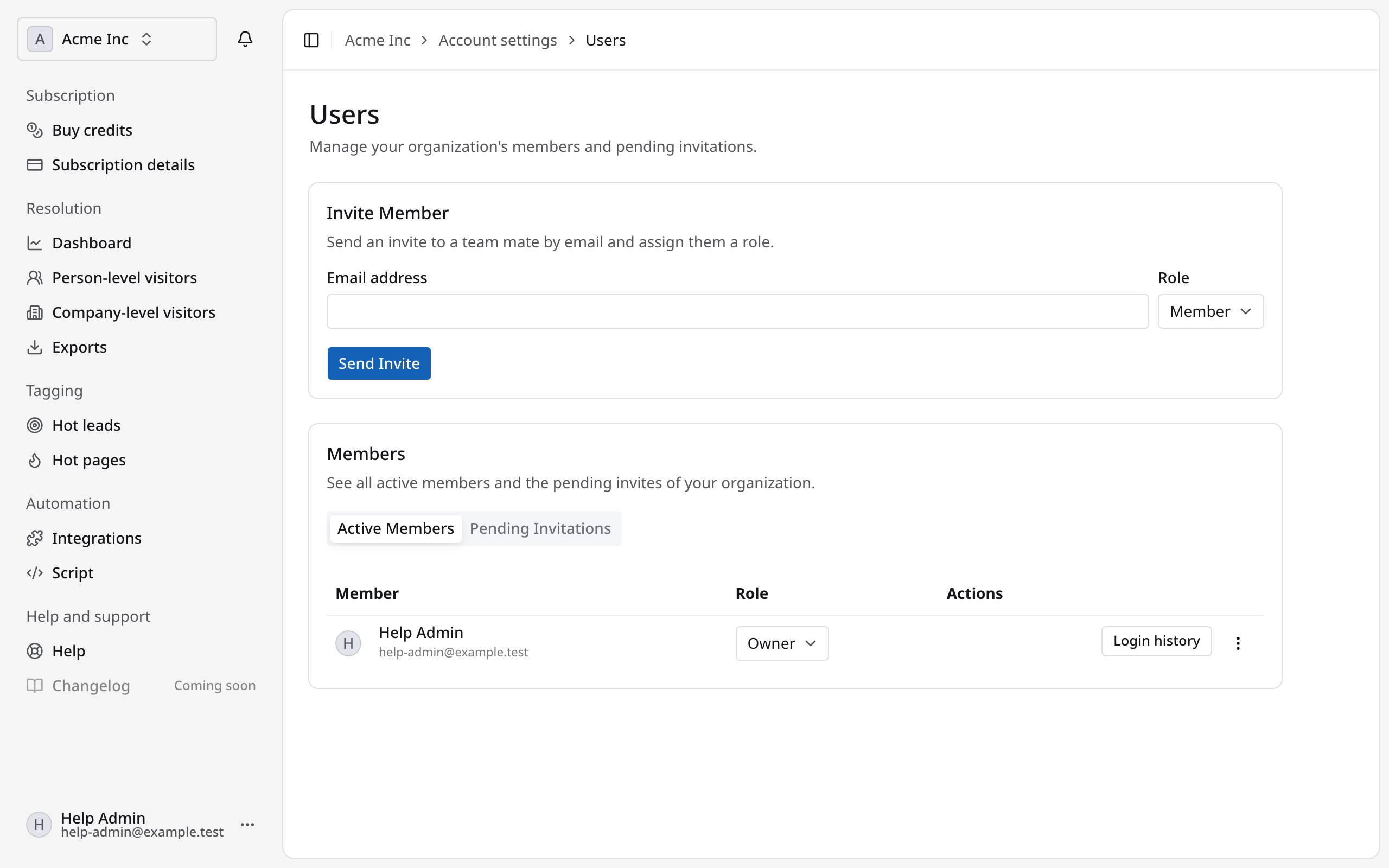
Inviting a member
- Under Invite Member, enter the person's Email address.
- Choose a Role: Member, Admin or Owner. Only owners can invite someone as an owner. See Understanding Blue Tracely Company Account Structure.
- Select Send Invite.
You'll see "Invitation sent successfully." The person receives an email invitation, which they accept by signing in, or creating a login, with that same address. The invitation appears under Pending Invitations until they accept it.
How many members you can have
- Free plan: up to 3 members, pending invitations included.
- Starter, Pro and Pro+: no plan limit. An organization can hold up to 100 members.
Members don't change your bill.
Managing pending invitations
Pending Invitations lists each invitation with its email address, role and when it expires. Invitations expire after 48 hours.
To cancel one, select the menu next to it and choose Revoke Invitation. To send a new invitation to the same address, revoke the pending one first, then invite again.
If the invitation can't be sent
| Message | What to do |
|---|---|
| "… already has a pending invitation." | Revoke the pending invitation, then invite again |
| "… is already a member of this organization." | The person already has access |
| "This organization has reached its invitation or member limit." | On Free, revoke a pending invitation or remove a member, or upgrade |
| "You do not have permission to send this invitation." | Only owners and admins can invite, and only owners can invite an owner |
| "The invitation is pending, but email delivery could not be confirmed. Revoke it from Pending Invitations before trying again." | Revoke it under Pending Invitations, then invite again |
Changing a member's role
Under Active Members, choose a new Role next to the member. You'll see "Membership updated successfully."
- Owners can change anyone's role, including making someone an owner.
- Admins can change the roles of admins and members, but not owners, and can't make anyone an owner.
- The organization must keep at least one owner.
Removing a member
- Under Active Members, select the menu (⋮) next to the member.
- Select Remove member.
- Select Remove member again to confirm.
The person loses access to the organization immediately. Their login isn't deleted, and any other organizations they belong to aren't affected. Only an owner can remove another owner.
You can't remove yourself this way. To leave, select Leave organization from the menu next to your own name. You can't leave if you're the organization's only member, or its only owner.