A passkey lets you sign in to Blue Tracely with your device's built-in security, such as Touch ID, Face ID, Windows Hello or a security key, instead of typing a password. This article explains how to add and manage your passkeys.
Why use a passkey?
- No password to type or remember. You confirm it's you with Touch ID, Face ID, Windows Hello or your device PIN.
- Harder to phish. A passkey only works on the site it was created for, so a look-alike page can't use it.
Where to manage your passkeys
Passkeys belong to your personal account. You can manage them in either place:
- Open the account menu, select Profile, then open the Security tab and go to Passkeys.
- Go straight to the Passkeys page.
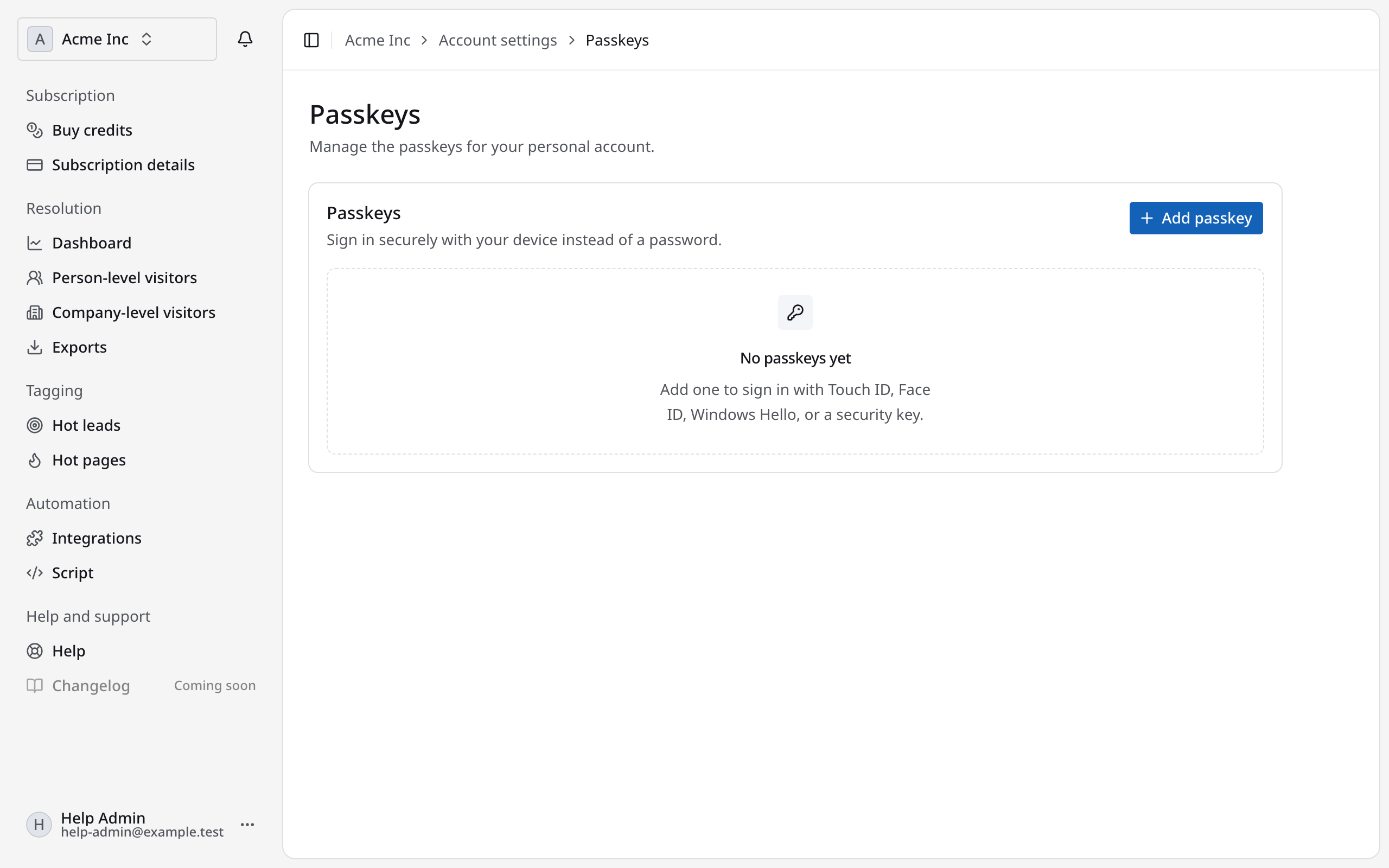
Adding a passkey
- Under Passkeys, select Add passkey.
- Follow your browser's or device's prompt. It may ask you to unlock your device with biometrics or a PIN.
- When you see "Passkey added", the Name passkey dialog opens. Enter a Passkey name that tells you which device it is, such as "Work laptop", and select Save.
Each passkey is listed with its name and the date it was added. If you skip naming it, it's listed by the type of device or password manager that holds it, or as "Unnamed passkey".
Renaming a passkey
- Select the pencil icon next to the passkey.
- Change the Passkey name and select Save.
Deleting a passkey
- Select the trash icon next to the passkey.
- Select Delete passkey to confirm.
You can no longer use that passkey to sign in. You can add a new one at any time.
Signing in with a passkey
On the sign-in page, select Sign in with passkey and follow your device's prompt. Your device must confirm it's you with a PIN or biometric.
Troubleshooting
| Message | What to do |
|---|---|
| "This passkey is already registered." | This device already holds a passkey for your account. Use it, or delete the old one first. |
| "Passkey registration was cancelled." or "Passkey sign-in was cancelled." | The prompt was closed. Try again and complete it. |
| "Verify your identity with a PIN or biometric to use this passkey." | Set up a PIN or biometric unlock on your device, then try again. |
| "No matching passkey was found." | The passkey you chose isn't on your account, or was deleted. Sign in another way. |
| "Passkey sign-in failed. Please try again." | Try again, or sign in with your email and password or Google. |
Best practices
- Name each passkey after its device, so you know which one to delete when you replace a device.
- Keep another way to sign in, such as your password or Google, in case you lose the device.
- Review your passkeys from time to time and delete the ones you no longer use.