This guide shows two ways to put the Blue Tracely snippet in the <head> of every page of a WordPress site. Both use the same snippet from your Script page.
Before you begin
Using WP Rocket? Exclude the Blue Tracely snippet from WP Rocket's Delay JavaScript execution setting, or many visitors won't be identified. See Why WP Rocket's "Delay JavaScript Execution" Can Break Blue Tracely Visitor Identification.
Make sure your domain is on the Script page. See Installing Your Blue Tracely Tracking Script.
Choose a method:
- Method 1: A header code plugin. The method the dashboard describes, and the simplest for most sites.
- Method 2: Your theme's header file. For people comfortable editing theme code.
You don't need a Blue Tracely plugin: any plugin that adds code to your site's header works.
Copy your snippet
- On the Script page, select Install next to your domain.
- Select WordPress. The Install on WordPress steps open with your snippet below them.
- Select Copy.
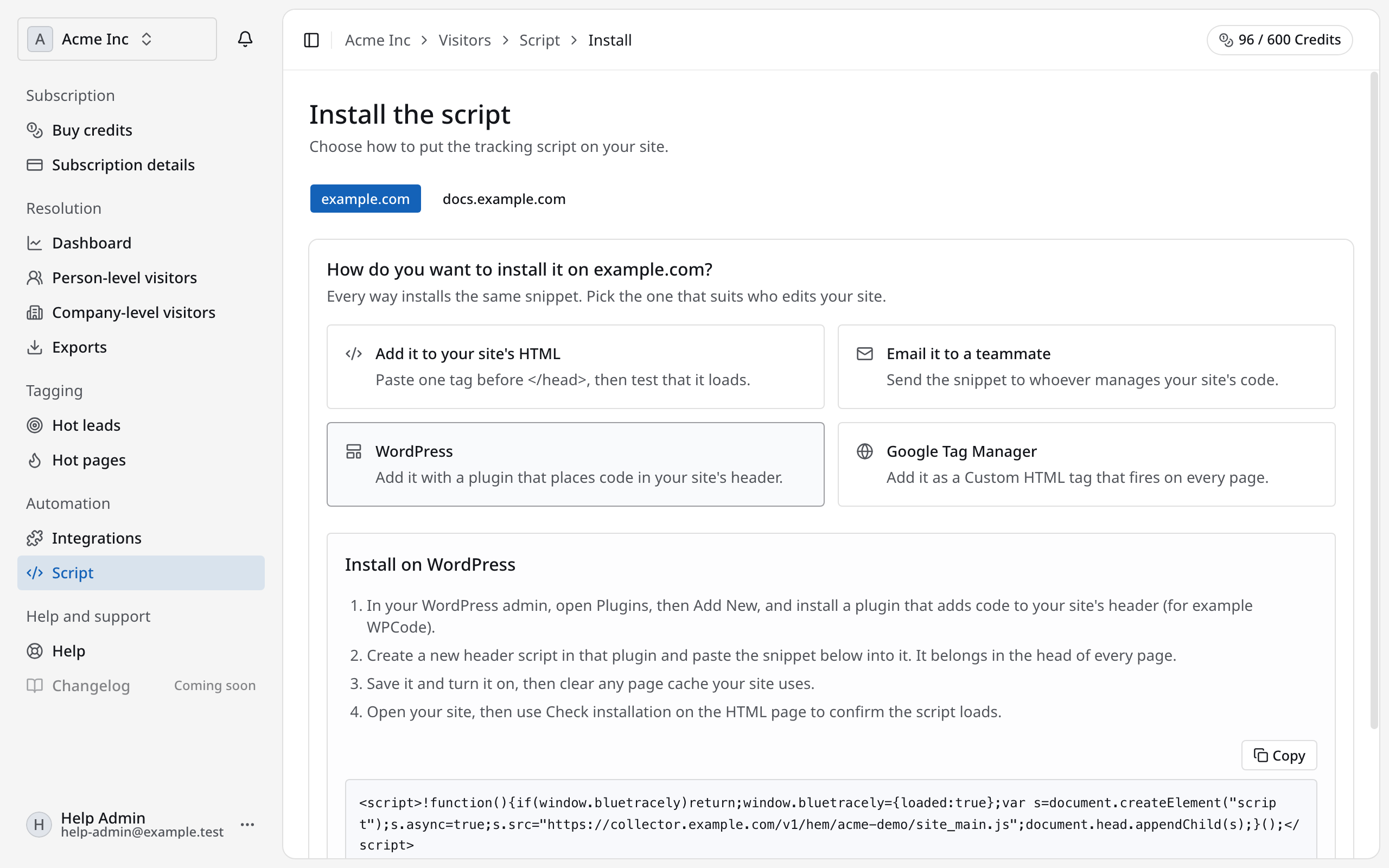
Method 1: A header code plugin
- In your WordPress admin, go to Plugins > Add New and install a plugin that adds code to your site's header, for example WPCode.
- In that plugin, create a new header script and paste your snippet into it. The exact names depend on the plugin; see its documentation.
- Save the script and make sure it's turned on.
- Clear any page cache your site uses.
For installing plugins, see WordPress's guide to managing plugins.
Method 2: Your theme's header file
Changes to a theme's files can be lost when the theme updates. A child theme or Method 1 avoids this. Some page builders manage their own header templates, in which case use Method 1.
- In your WordPress admin, open the theme file editor and select your theme's
header.phpfile. See WordPress's guide to editing files. - Paste your snippet just before the closing
</head>tag. Don't change any other code, and don't place the snippet inside another tag. - Save the file.
- Clear any page cache your site uses.
If your site looks broken after saving, the snippet was probably pasted incompletely or in the wrong place. Copy it again and check that it sits just before </head>.
Check the installation
Open your site in a private browsing window, then go back to the Script page and select Test script next to your domain. When the script answers, you'll see "The script is installed on your website." See Verifying Your Script Installation.
Troubleshooting
- The check can't find the script. Clear your caching plugin, your host's cache and any content delivery network, then try again.
- The snippet appears twice. Remove one copy: use either the plugin or the theme file, not both.
- The check reports a different version of the script. Copy the snippet from the dashboard again and replace the one on your site.