CSV exports are available on the Pro and Pro+ plans. Owners and admins can create exports; every member can download them.
CSV exports give you a spreadsheet file of the visitors Blue Tracely identified over a date range. Your recent exports are listed on the Exports page, under Resolution in the sidebar.
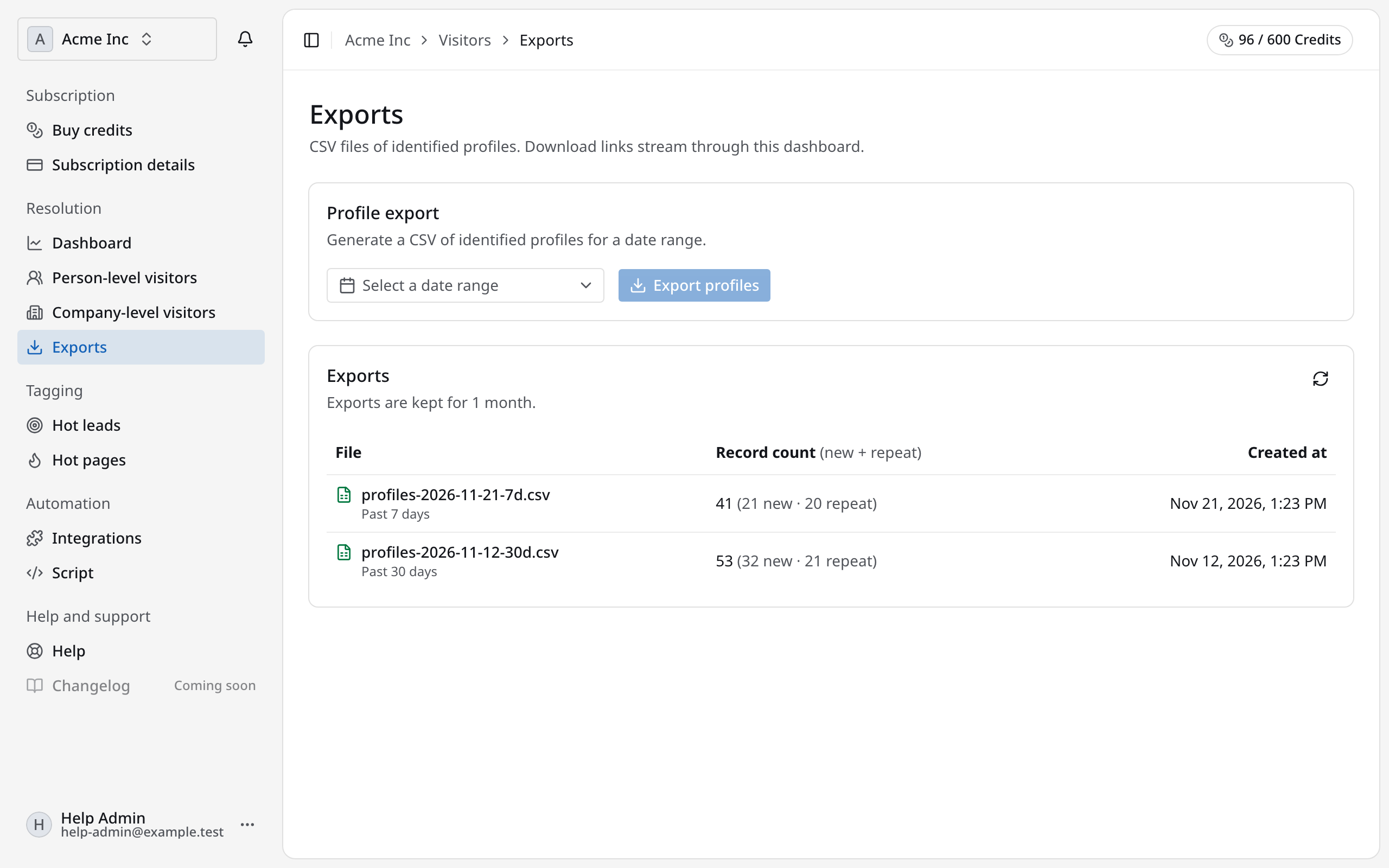
Exporting profiles for a date range
- Go to Exports.
- Under Profile export, open Select a date range and choose Today, Past 3 days, Past 7 days, Past 30 days, Past 90 days, Past 120 days or Past 365 days.
- Select Export profiles.
The file is created straight away and appears under Exports. If you don't see it, select the refresh button. This export includes every identified person in the range, without filters.
Exporting filtered people or companies
To export only some visitors, start from a visitor list:
- Go to Person-level visitors or Company-level visitors.
- Apply the filters you want, such as Hot page visitors, a hot lead filter, a minimum number of page views, a search, or the page or UTM campaign you opened the list from.
- Select Export.
- In the dialog, choose the Date range, check the Filters applied, and select Export profiles (or Export companies).
The date range in the dialog replaces any date filter on the list. When the export is ready, select View exports in the confirmation message, or go to the Exports page.
Downloading a CSV
On the Exports page, select the file name to download it. Each row shows the date range, the Record count split into new and repeat visitors, and when it was Created at.
An export holds up to 100,000 rows, starting with the most recent visits. Exports are kept for 1 month, then removed.
If your browser opens the file as text instead of downloading it, right-click the file name and choose your browser's option to save the link.
People export columns
| Column | Definition |
|---|---|
| First Name | The person's first name |
| Last Name | The person's last name |
| Title | The person's job title |
| Company Name | The person's company |
| Business Email | The person's business email address, where one was found |
| Personal Email | The person's personal email address, where one was found (US records only) |
| LinkedIn URL | The address of the person's LinkedIn profile |
| Website | The company's website |
| Industry | The company's industry |
| Employee Count | The company's size |
| Estimate Revenue | The company's estimated revenue |
| City | The city from the person's profile |
| State | The state from the person's profile |
| Zipcode | The ZIP code from the person's profile |
| Tags | The visitor's tags, separated by commas: Hot Page, Hot Lead and Known in CRM, or empty |
| Page Views | The person's page views during the export's date range (on the page or UTM campaign you filtered by, if any) |
| First Seen | When the person was first seen |
| Last Seen | When the person was last seen |
| Profile | New if the person was first seen during the export's date range, otherwise Repeat |
Company export columns
| Column | Definition |
|---|---|
| Company Name | The company's name |
| Website | The company's website |
| Industry | The company's industry |
| Employee Count | The company's size |
| Estimate Revenue | The company's estimated revenue |
| City | The company's city |
| State | The company's state |
| Country | The company's country |
| Company LinkedIn URL | The company's LinkedIn page |
| Tags | The company's tags, separated by commas: Hot Page and Known in CRM, or empty |
| Page Views | The company's total page views on your websites |
| Sessions | The company's number of sessions |
| First Seen | When the company was first seen |
| Last Seen | When the company was last seen |
| Profile | New if the company was first seen during the export's date range, otherwise Repeat |
Frequently asked questions
When I open a CSV in my browser, it looks like a wall of text. Why?
Some browsers show a CSV file's contents instead of downloading it. The values are separated by commas, which is what CSV (comma-separated values) means. Save the file instead, then open it in a spreadsheet application.
Can I filter the visitors in an export?
Yes. Apply filters on Person-level visitors or Company-level visitors, then select Export there. See Exporting filtered people or companies.
Why can an export cover at most 365 days?
Past 365 days is the longest range available. If you need a complete history of your visitors, export regularly or send visitors to your CRM as they're identified.
Can Blue Tracely send exports to my database or storage automatically?
No. Exports are created on request and downloaded from the Exports page. To receive visitors automatically, connect HubSpot CRM, Salesforce CRM, Slack or Microsoft Teams. See Integrations.
Is there an API to download exports?
No. Blue Tracely doesn't offer a customer API. Exports are downloaded from the dashboard.
Why are the email columns missing?
The Business Email and Personal Email columns are only included while your plan includes email addresses. If your plan no longer includes them, they're left out of new exports and of downloads of earlier ones.
Troubleshooting
The export's record count is 0
No visitors matched the date range and filters you chose. Check the Dashboard for that period, then try a longer range or fewer filters.
There's no Export button, or it can't be selected
Exports need the Pro or Pro+ plan, and only owners and admins can create them. Hover over the button to see why it's unavailable.
No visitors are being collected
If exports stay empty, check that:
- your credits haven't run out, on Subscription details;
- your domain is active and the script is installed, on the Script page.