The Microsoft Teams integration posts the visitors Blue Tracely identifies to a Teams channel, so your team can act on them where it already works. It's included on every plan. This article explains how to connect Teams, the settings, and what to do if something goes wrong.
Connecting Blue Tracely to Microsoft Teams
Once connected, Blue Tracely can post newly identified visitors to the channel you choose, and optionally companies identified without a person, returning visitors and a daily recap.
Before you begin
- A Microsoft 365 business account. Free Microsoft Teams accounts aren't supported, because of limitations in Microsoft's API.
- Permission to authorize third-party apps in your Microsoft 365 organization. If you don't have it, see "Need admin approval" error.
- Membership in at least one Team and channel in Microsoft Teams.
- Owner or admin access to your Blue Tracely organization.
Step 1: Open the Microsoft Teams integration
- In the sidebar, go to Automation > Integrations, or open Integrations.
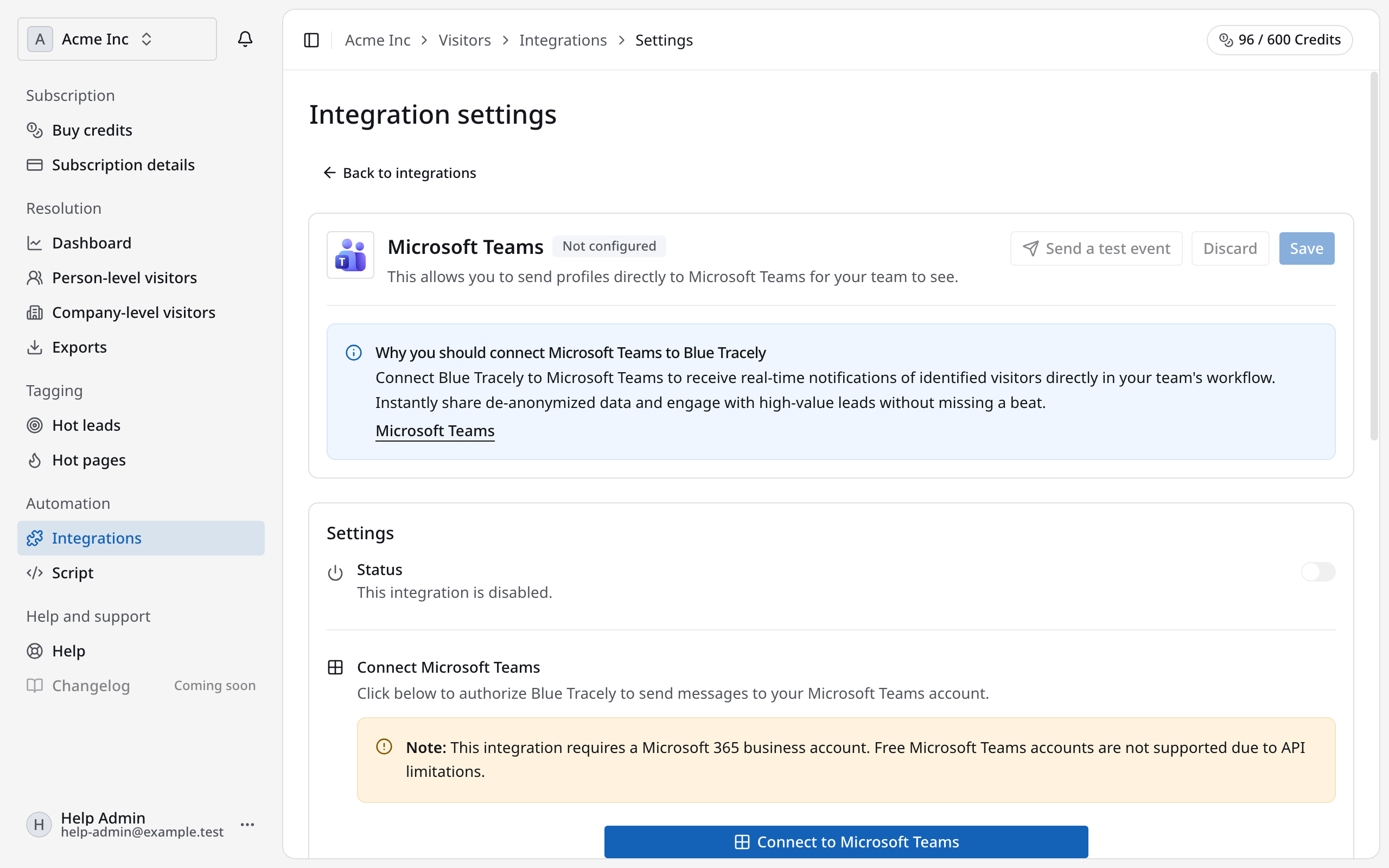
- Select the Teams tile. The Microsoft Teams settings page opens.
Step 2: Connect your Microsoft Teams account
- Under Settings, select Connect to Microsoft Teams.
- Sign in to Microsoft with your work account.
- Review the permissions Microsoft shows and accept them.
You're brought back to Blue Tracely, which confirms "Connected. Choose a Team and Channel, then save." The page now shows the Connected account you signed in with.
Step 3: Select a Team and channel
- Under Team, choose the Team that should receive messages.
- Under Channel, choose the channel within that Team.
- Turn on Status.
- Select Save at the top of the page.
The lists show only the Teams the connected account belongs to. If one is missing, select Reload Teams. Messages are posted in the channel by the connected account.
Step 4: Configure notification settings
| Setting | What it does | Default |
|---|---|---|
| Status | Turns sending on or off without disconnecting. While it's off, nothing is posted and your Team, channel and settings are kept. | Off until you choose a Team and channel and turn it on |
| Send Company-Only Profiles | Also posts companies identified without a person. | Off |
| Send Repeat Visitors | Posts a previously identified visitor again when they come back, at most once a day. | Off |
| Daily Recap | Posts a summary of the day's visitors after each day ends, in US Eastern time. | Off |
| Hot leads only | Posts only people tagged by a hot lead filter. Under Hot lead filters, choose which filters count, or leave it empty for any of them. | Off |
After any change, select Save at the top of the page. Discard undoes changes you haven't saved.
What a message contains
Each visitor is posted as a card with the same information as Blue Tracely's Slack messages:
- the person's name and company, with a Hot lead or Hot page icon when they apply;
- Name, Title, Company, Email (business email, on Pro and Pro+), LinkedIn and Location;
- the page where they were first identified, with the date and time in US Eastern time;
- About the company: Website, Est. Employees, Industry and Est. Revenue;
- the buttons Connect on LinkedIn, More Details and Report Data Issue.
A returning visitor's card starts with REPEAT VISITOR SIGNAL and says how many pages they've viewed since they were first identified. A company card shows the company's details and the page visited. The daily recap has the same totals and top pages as the Slack recap; see Enabling / Disabling 'Daily Recap' Message in Slack.
Unlike Slack, Teams also receives people without a LinkedIn profile.
Connected account details
Once connected, the page shows:
- Connected account: the Microsoft account used to authorize the integration;
- Team and Channel: where messages are posted.
Check these to confirm messages go to the right place.
Reloading Teams and channels
If you've created a Team or channel since connecting, or one is missing:
- Select Reload Teams. Blue Tracely asks Microsoft for your Teams and channels again.
- Choose the Team and channel again if needed.
- Select Save.
If the page says "This account isn't a member of any Team", join a Team in Microsoft Teams, then reload.
Testing the integration
Select Send a test event at the top of the page. Blue Tracely posts a sample visitor to your channel and tells you whether it worked. The attempt appears under Sync logs at the bottom of the page. See Integration Logs.
Disconnecting Microsoft Teams
- At the bottom of Settings, select Disconnect from Teams.
- Confirm with Disconnect.
The connection and settings are deleted right away and nothing more is posted. Sync logs are kept. You can connect again at any time. To pause instead, turn off Status and select Save.
Troubleshooting
"Need admin approval" error
If Microsoft shows Need admin approval while you connect, your Microsoft 365 account can't grant consent to apps in your organization. Either:
- sign in with an account that can, such as a Microsoft 365 admin account; or
- ask your Microsoft 365 admin to raise your permissions, then connect again.
Don't use the option on Microsoft's screen to request approval: it won't complete this connection. For more about consent, see Microsoft's guide to granting admin consent.
"This integration requires a Microsoft 365 business account"
You signed in with a personal Microsoft account, which can't use Teams through Microsoft's API. Connect again with a work account.
Messages stop arriving
Deliveries fail if the connected account leaves the Team, the channel is deleted, or Microsoft stops accepting the connection. Read the errors under Sync logs. If they ask you to reconnect, disconnect and connect again. See Why did my integration stop working?.
If the page asks for a workflow URL instead
If the page says Microsoft Teams isn't set up on this platform yet, Connect to Microsoft Teams is unavailable and the page shows a Workflows webhook URL field instead. In Microsoft Teams, create a workflow that starts with "When a Teams webhook request is received" and posts to your channel, then copy its URL. See Microsoft's guide to creating incoming webhooks with Workflows. Paste the URL into the field and select Save, then turn on Status and select Save again. The workflow decides the channel, so the Team and channel lists don't appear.
Need more help?
If messages aren't appearing, check that:
- Status is on;
- a Team and Channel are selected;
- Hot leads only isn't narrowing it to fewer people than you expect;
- on the Free plan, Send Company-Only Profiles is on, because Free identifies companies only.