This guide shows how to add the Blue Tracely snippet to landing pages built with Unbounce.
Before you begin
Unbounce pages are often published on a subdomain, such as go.example.com. The script only reports visits from the exact domain on your Script page and its www. address, so add the domain your Unbounce pages use as a domain of its own, and use the snippet made for it. Each domain uses one of your domain seats. See Installing Your Blue Tracely Tracking Script and Add Multiple Domains to Your Blue Tracely Account.
Copy your snippet
- On the Script page, select Install next to the domain your Unbounce pages use.
- Select Add it to your site's HTML.
- Under Copy the script, select Copy.
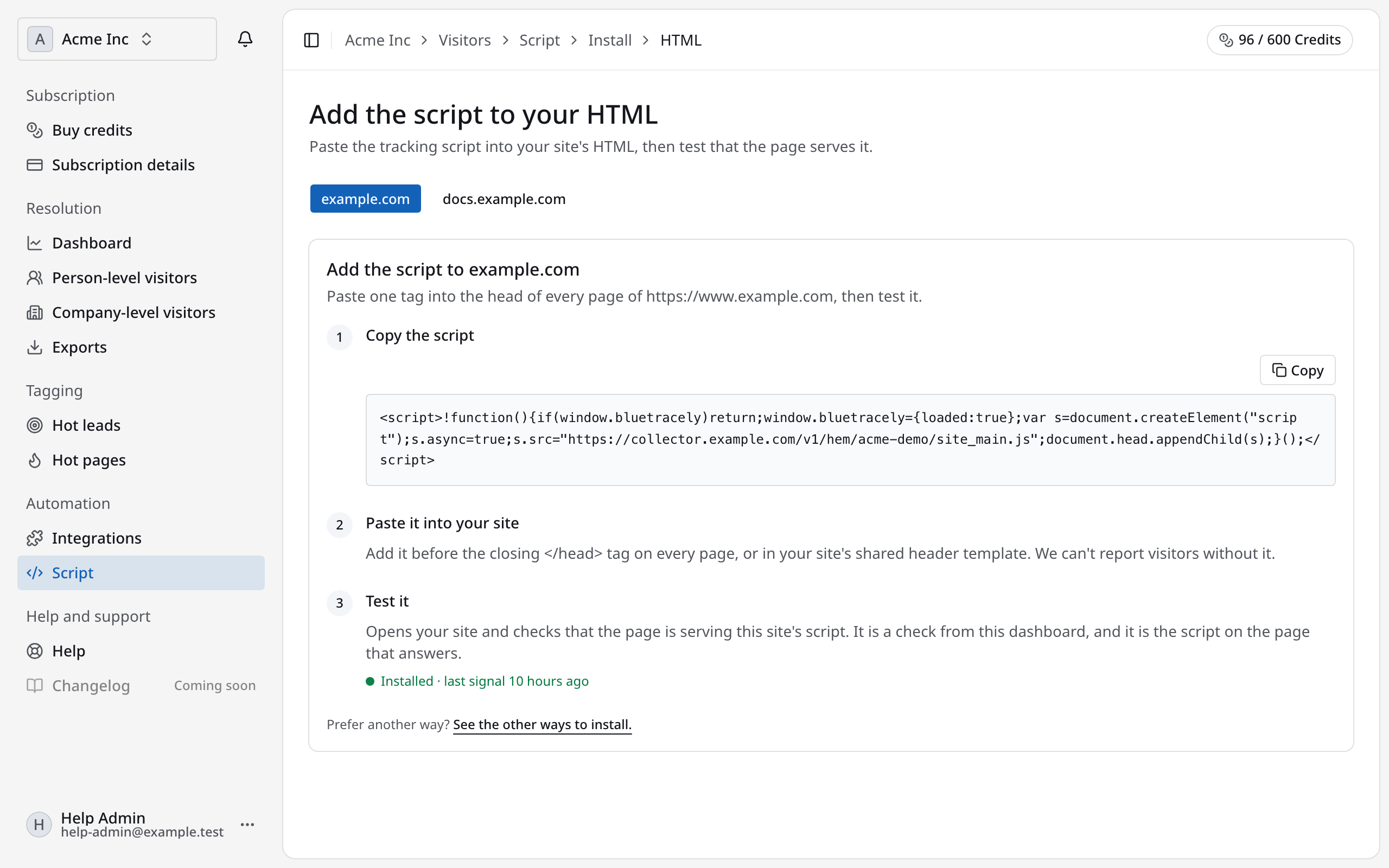
Option 1: All pages on a domain (Script Manager)
Unbounce's Script Manager adds a script to every page on a custom domain, including pages you publish later. Follow Unbounce's guide to adding custom scripts using Script Manager:
- Add a new script and give it a name, such as "Blue Tracely".
- Set the placement to Head.
- Paste your snippet, unchanged.
- Choose your domain and save.
Option 2: One landing page (Classic Builder)
Follow Unbounce's guide to adding custom JavaScript in the Classic Builder:
- Open the landing page and its Javascripts dialog.
- Name the script, set the placement to Head, and paste your snippet, unchanged.
- Save, then publish or republish the page.
Don't use both options for the same page: add the snippet once.
Check the installation
Open a published page, then go back to the Script page and select Test script next to your domain.
Test script opens the home page of the domain on your Script page. If nothing is published at that address, check that your landing pages carry the snippet by viewing their source code instead. See Manually Verifying Your Script Installation.