The Notifications page holds your organization's daily CSV export preference and the list of people it's for. This article explains the page, and which emails Blue Tracely sends today.
Daily exports aren't sent yet. You can save the preference and the recipients, but no email arrives, whatever is saved. To get your visitors as a file now, create an export on the Exports page. See CSV Exports.
Opening Notifications
Only owners and admins can open this page.
- Open the account menu at the bottom of the sidebar.
- Select Notifications.
Or go to Notifications.
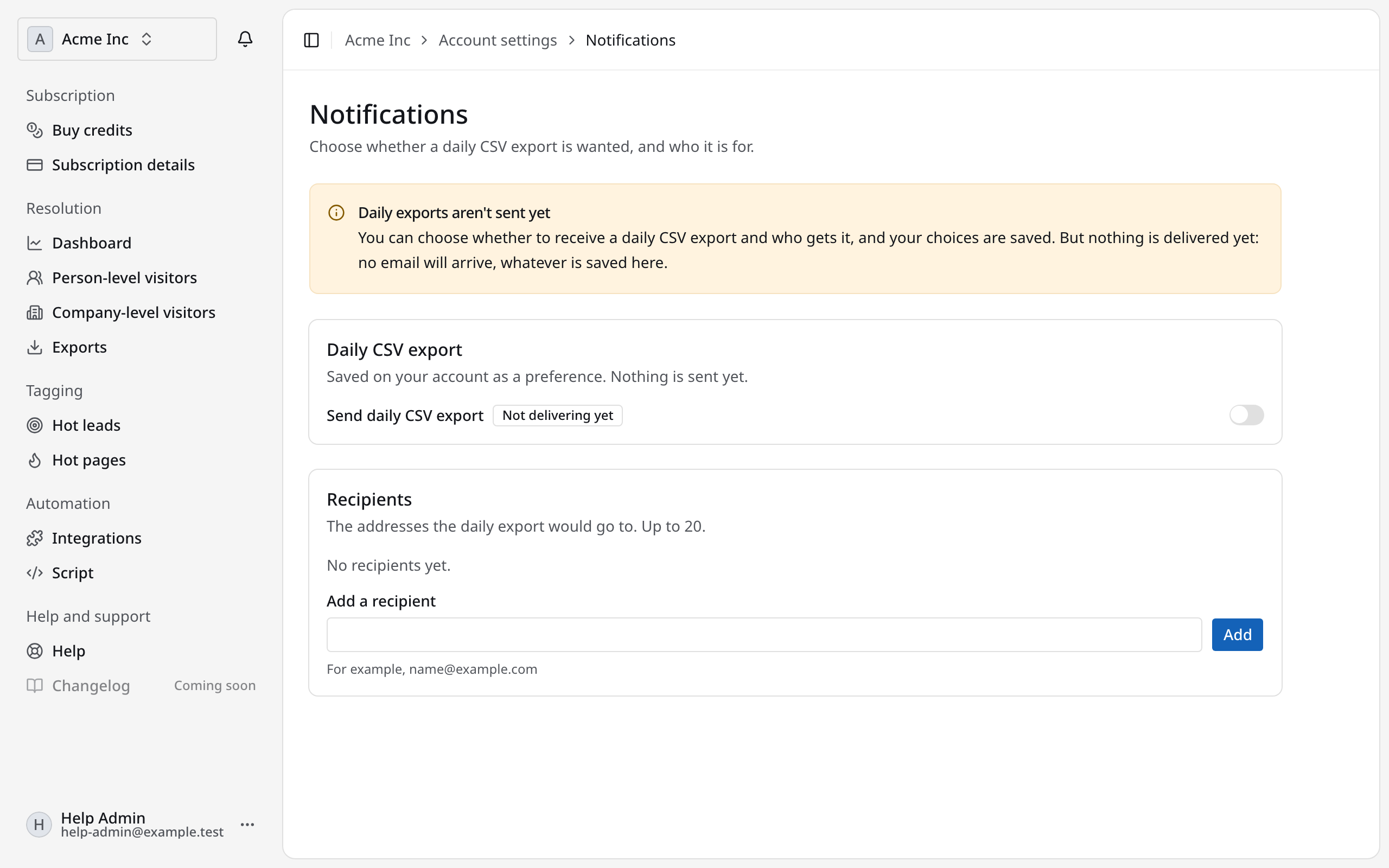
Daily CSV export
Under Daily CSV export, turn Send daily CSV export on or off. The choice is saved right away. The setting is marked Not delivering yet, because nothing is sent.
Adding a recipient
- Under Recipients, enter an email address in Add a recipient.
- Select Add.
You can add up to 20 recipients. When you reach the limit, remove one to add another.
Removing a recipient
Select the x next to the address. It's removed right away.
Emails Blue Tracely sends
| Who receives it | |
|---|---|
| Billing emails, such as a failed payment or a canceled subscription | Every owner and admin of the organization |
| Invitations to join an organization | The person invited |
| Email verification, password reset and email change confirmation | The person whose login it is |
Blue Tracely doesn't email you when an integration disconnects or when your script stops sending visits. To check on them:
- open Sync logs from the Integrations page, and see Why Did My Integration Stop Working?;
- check each domain's status on the Script page, such as Installed · last signal.
Getting visitors as they arrive
To be notified of identified visitors in real time, connect Slack or Microsoft Teams. See Integrations.