The HubSpot CRM integration creates the visitors Blue Tracely identifies as contacts in HubSpot, with their company, and logs every page they view on the contact. This article explains how to connect it, what access HubSpot asks you to grant and what to do after connecting.
Before you begin
- Check your plan. HubSpot CRM is included on Pro and Pro+. On other plans its tile on the Integrations page says it's not included on your plan, with an Upgrade link.
- Be an owner or admin of your Blue Tracely organization. Members can see the page but can't change it.
- Have the right HubSpot permissions. HubSpot lets Super Admins and users with App Marketplace access connect apps. Blue Tracely also creates its own contact properties when you connect, so the HubSpot user needs permission to create properties. See HubSpot's guide to resolving a permissions error when connecting an app.
Connecting Blue Tracely to HubSpot
- In the sidebar, go to Automation > Integrations, or open Integrations.
- Select the Hubspot CRM tile.
- Under Settings, select Connect to HubSpot. HubSpot's own page opens.
- In HubSpot, sign in if asked, choose the HubSpot account to connect, review the access requested and approve the connection.
- You're brought back to Blue Tracely, which confirms "Connected. The integration is on."
The Settings section then shows Connected to HubSpot, followed by your HubSpot portal number. HubSpot starts receiving visitors identified from then on. To send someone identified earlier, see Manually Syncing a Profile in Blue Tracely.
Step 4 happens in HubSpot, and HubSpot may word or order its screens differently. If the connection is cancelled or refused, Blue Tracely shows the reason, for example "The connection was cancelled." Try again from step 3.
What access Blue Tracely asks for
Blue Tracely requests these HubSpot permissions:
| Permission | Why |
|---|---|
oauth | Sign-in to connect the account |
crm.objects.contacts.read, crm.objects.contacts.write | Find, create and update contacts |
crm.objects.companies.read, crm.objects.companies.write | Find and create companies, and link contacts to them |
crm.schemas.contacts.write | Create Blue Tracely's contact properties |
timeline.read, timeline.write | Log each page view on the contact's activity timeline |
HubSpot may also show three optional permissions: settings.users.read, used to list your HubSpot users so you can invite them, and crm.lists.read and crm.lists.write, which the HubSpot CRM integration doesn't use.
Blue Tracely connects to one HubSpot account per organization. To connect a different account, disconnect first. See Re-Authenticating or Disconnecting HubSpot CRM.
What happens when you connect
As soon as the connection is made, Blue Tracely:
- creates its contact properties in HubSpot, in a property group named Blue Tracely,
- reads your HubSpot users for the Hubspot CRM Users list,
- reads the email addresses and LinkedIn URLs of your contacts, and the domains of your companies, for Known in your CRM.
If HubSpot doesn't let Blue Tracely create its properties, a Re-authenticate with HubSpot message appears under Settings with the reason. See Troubleshooting: HubSpot CRM.
Choosing your settings
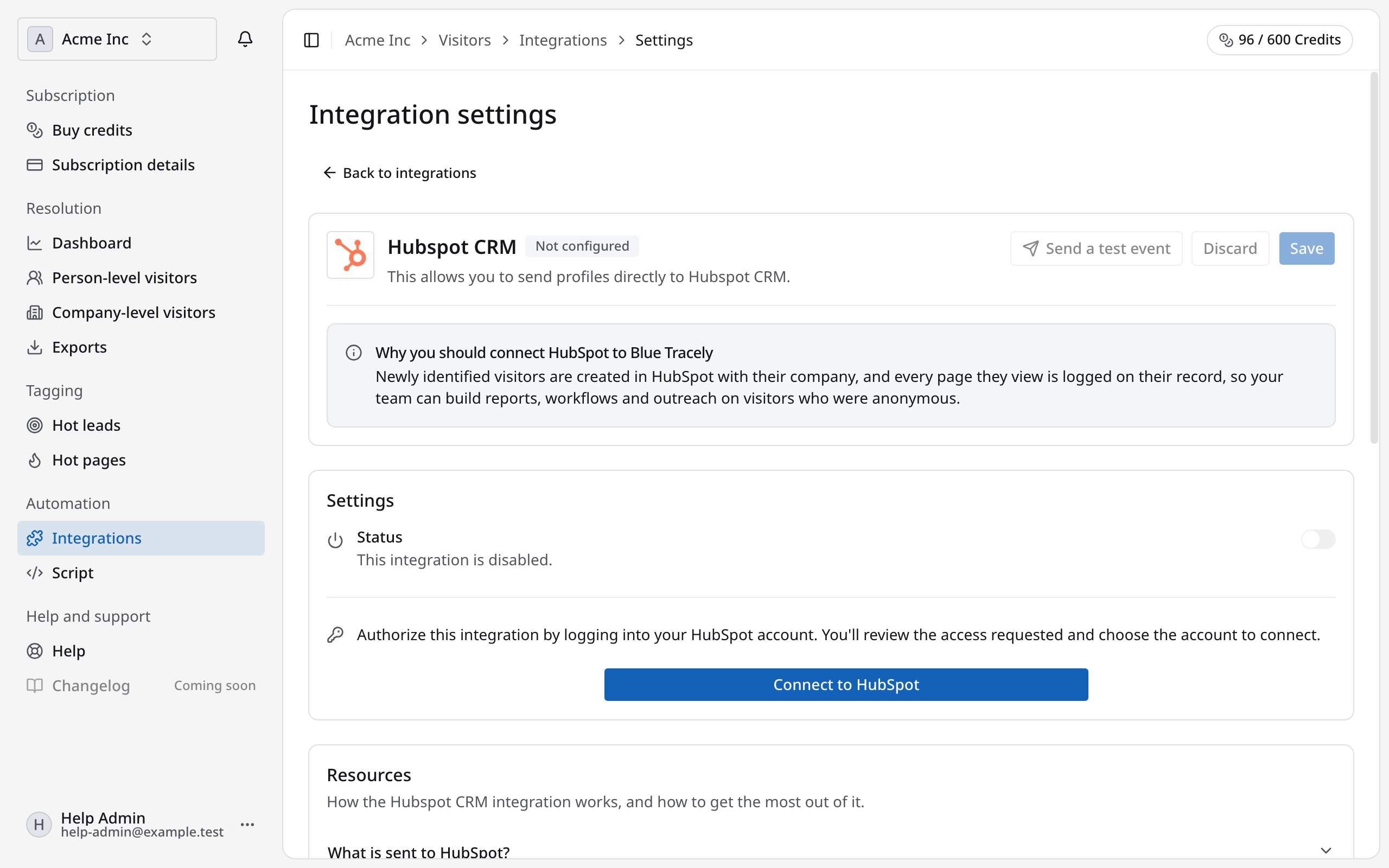
Once connected, the settings page shows Company settings, Contact settings and Sync filter. The defaults create every company and contact Blue Tracely identifies, except people without an email address. Review them before many visitors arrive, then select Save at the top of the page. See HubSpot Integration: Company and Contact Settings.
To check the connection, select Send a test event at the top of the page. It sends a sample person named Test Payload (test.payload@example.com, at Test Payload Inc), so a contact with that name appears in HubSpot. You can delete it afterwards.
Inviting your HubSpot colleagues
The Hubspot CRM Users card lists the people who have a user in your HubSpot account:
- Invite to Blue Tracely sends them an invitation to join your organization as a member.
- Invited means an invitation is waiting for them.
- Blue Tracely user means they're already a member.
The list isn't updated automatically. After users are added to or removed from HubSpot, select Refresh on the card. See Adding or Removing Dashboard Users.
Next steps
- How Blue Tracely's HubSpot CRM Integration Works: what is created in HubSpot and where page views appear.
- Playbook: Using HubSpot CRM with Blue Tracely: ideas for using the data.
- Integration Logs: check each delivery.