You can narrow Person-level visitors and Company-level visitors to the visitors tagged Hot Page. The Hot page visitors filter is available on the Pro and Pro+ plans.
Showing only hot page visitors
- Go to Person-level visitors or Company-level visitors.
- Select Hot page visitors at the top of the page.
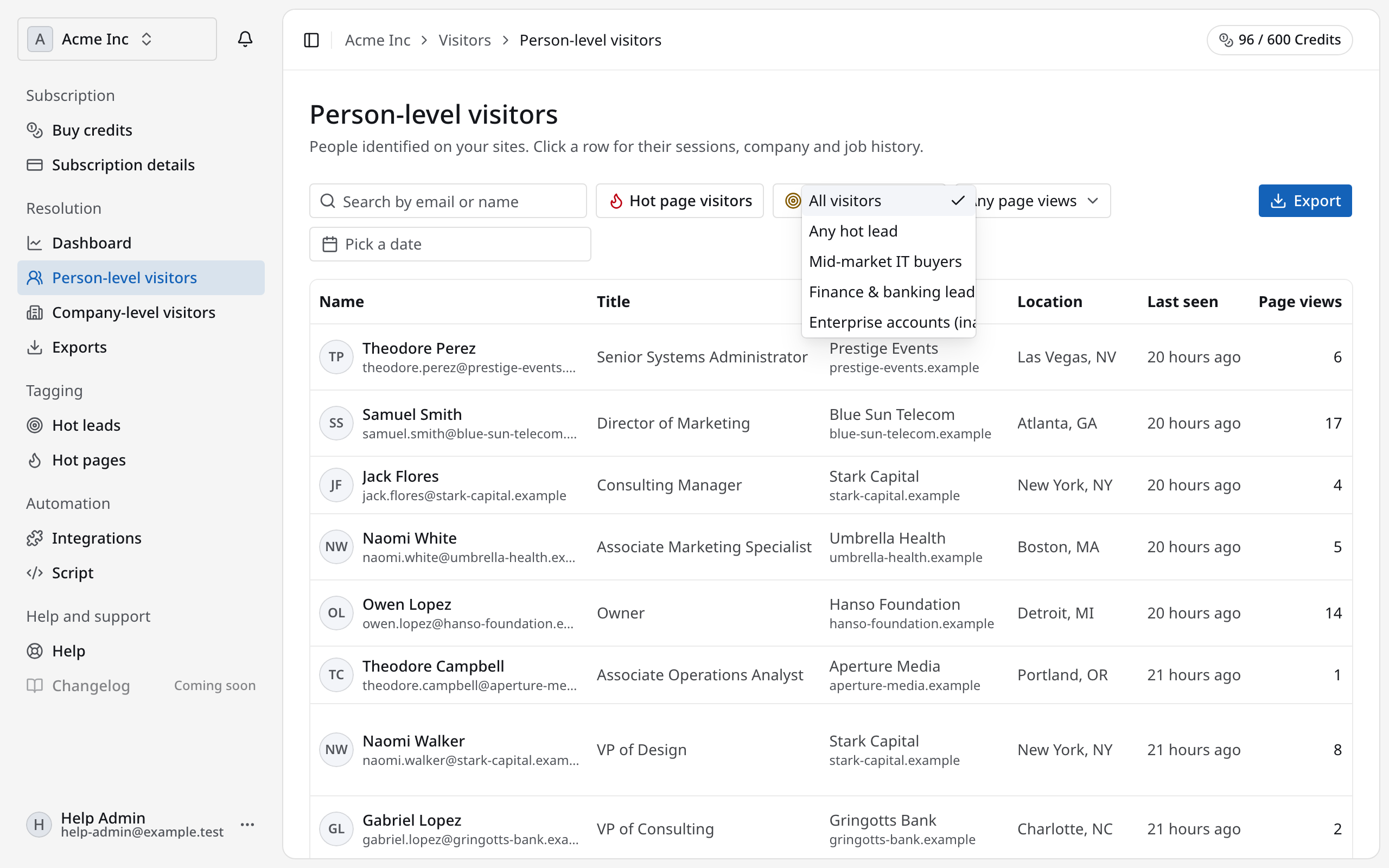
The list reloads with only the visitors who viewed a hot page. When you also choose a date range, it shows the visitors who viewed a hot page during those dates. You can combine it with the other filters, such as the Hot leads filter on Person-level visitors, a minimum number of page views or a search.
To turn the filter off, select Hot page visitors again, or select Clear filters to reset every filter.
Exporting filtered results
Owners and admins can export the filtered list to a CSV file:
- With your filters applied, select Export.
- In the dialog, choose the Date range, check the Filters applied, and select Export profiles (or Export companies).
- Download the file from the Exports page when it's ready.
See CSV Exports.
Troubleshooting
Hot page visitors can't be selected
Your plan doesn't include hot pages. The line under the filters reads Some filters are not included in your plan. with a link to upgrade options.
The list is empty
Check that you've added hot pages on Hot pages, and that their entries match your page addresses. Only visits made after a hot page was added are tagged.