This guide walks you through creating a Blue Tracely account, from the sign-up form to your first look at the dashboard.
Step 1: Create your account
Go to the sign-up page. From the sign-in page, you can also select Sign up next to "Don't have an account?".
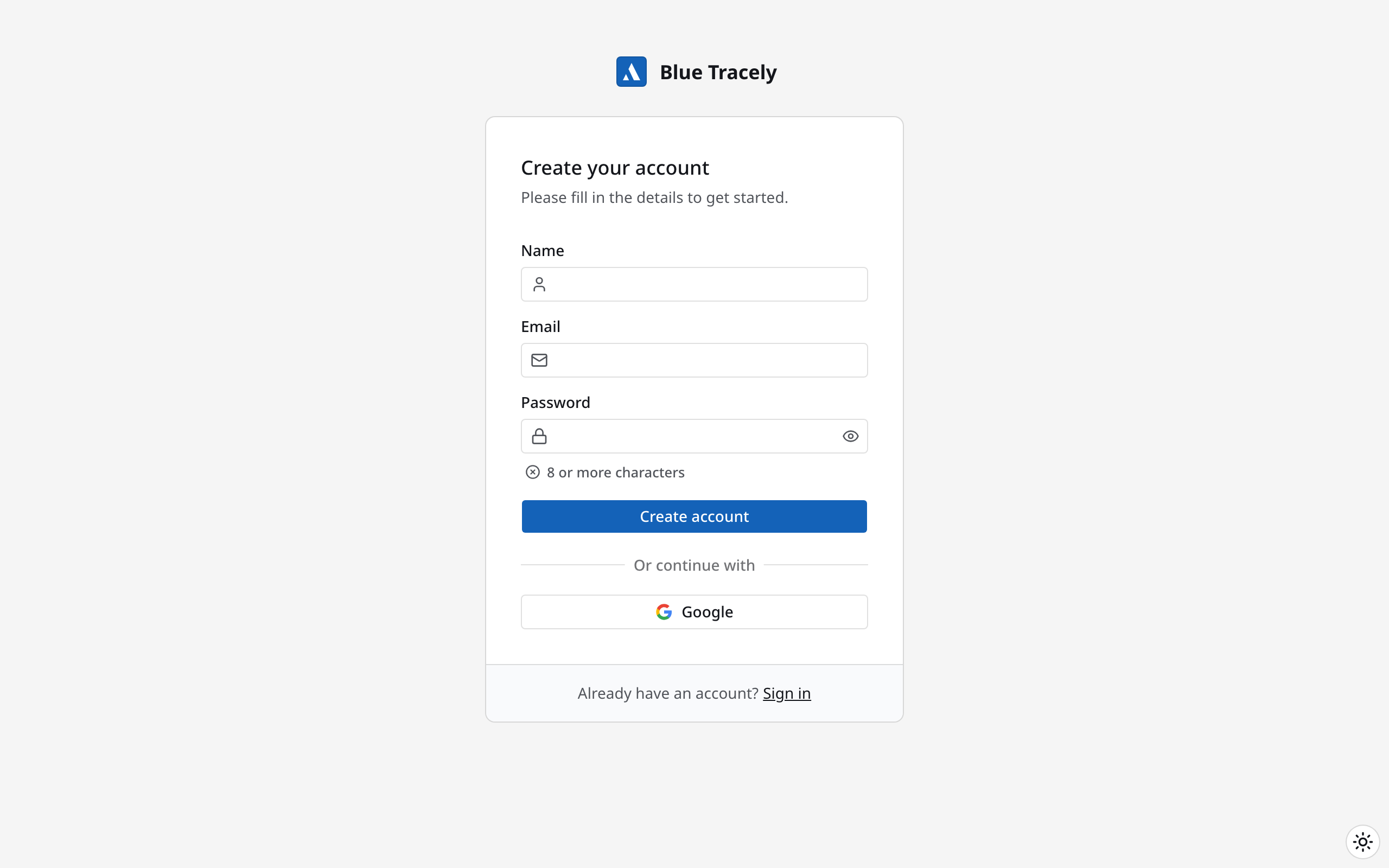
You can sign up in two ways.
With your email address
- Enter your Name.
- Enter your Email. Use your work address, so your teammates recognize you when you invite them.
- Choose a Password. It needs 8 or more characters, uppercase and lowercase letters, and at least one number. The hint under the field shows the next requirement until you see "All requirements met".
- If a security check appears, complete it.
- Select Create account.
With Google
Under "Or continue with", select Google and choose your Google account. You then continue straight to Step 3.
Step 2: Verify your email address
After you select Create account, the Verify your email page tells you where the link was sent.
- Open the email from Blue Tracely and select the verification link.
- On the Email verified page, select Continue.
The link works once, and stays valid for 14 days. If it doesn't arrive, check your spam folder, or select Resend verification email. Entered the wrong address? Select Sign up again.
Step 3: Set up your account
The Set up your account page has two short steps.
- Your profile. Check your Name, optionally upload an Avatar, and select Continue.
- Your organization. Enter an Organization Name, usually your company's name, and select Create Organization. Your organization is where your domains, visitors, settings and teammates live.
If a teammate invited you to their organization, you only complete the profile step, then join their organization instead of creating one. See Adding or Removing Dashboard Users.
Step 4: Your free trial starts
When you create your organization, it starts a free 7-day trial of the Pro+ plan with 1,000 credits, if you're eligible. No card is needed and nothing is charged. When the trial ends, after 7 days or once the credits are used, your organization moves to the Free plan unless you choose a plan.
Each person, and each company email domain, can have one trial, and other checks against repeated trials may apply. When a trial can't be granted, your organization starts on the Free plan. See 7 Day Trial of Pro+.
Step 5: Install your script
Once your organization is created, the dashboard opens. Blue Tracely can't identify anyone until the tracking script is on your website, so that's your next step:
- Open the Script page.
- Add your domain under Add a Domain.
- Install the snippet, or send it to the teammate who edits your website with Email it to a teammate.
See Installing Your Blue Tracely Tracking Script for every step.
Where to go next
- Registration Checklist for New Users
- What to Expect After Signing Up & Installing Your Blue Tracely Script
- Authentication Passkeys, to sign in without a password once your account is set up