Besides the tags your hot lead filters add on their own, you can tag or untag any identified person by hand. Manual tagging is available on the Pro and Pro+ plans, to owners and admins.
Why tag a person by hand
- Flag a decision-maker or a high-intent visitor your filters didn't catch.
- Show your sales and marketing teams which people to follow up first.
- Remove a tag from someone who matched a filter but isn't a good fit.
How to tag a person as a hot lead
- Go to Person-level visitors and select the person's row to open their profile.
- At the top of the profile, select Hot lead.
- Under Mark as hot lead, choose one of your filters, or Without a filter.
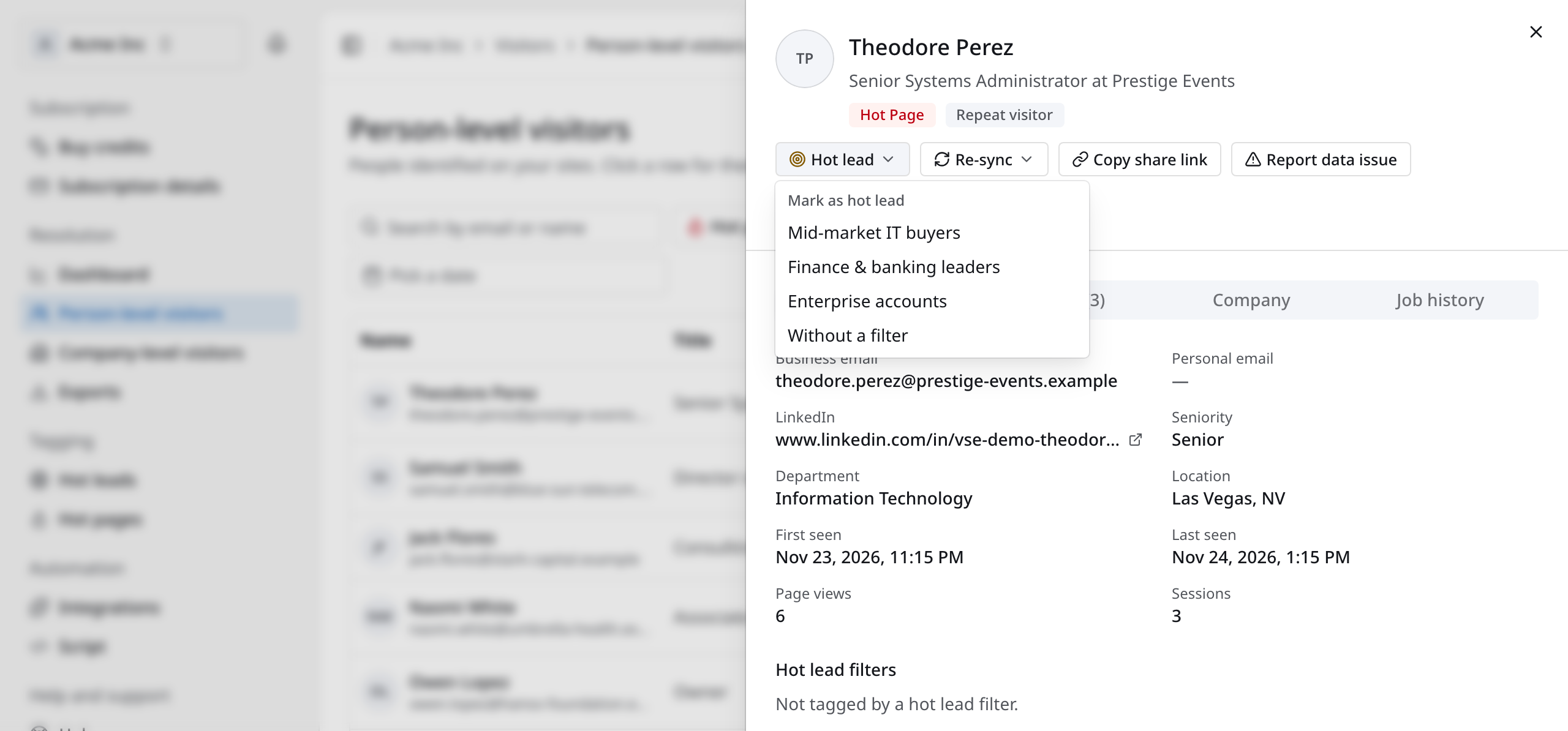
A Marked as hot lead message confirms the change. The person now carries the Hot Lead tag. Under Hot lead filters on the Overview tab, the filter you chose is listed, or Marked manually if you chose Without a filter.
Which option to choose
- Choose a filter when the person belongs with the people that filter tags. They appear when you filter the list by that filter, and they count toward integrations that follow it.
- Choose Without a filter for a general flag. The person appears under Any hot lead, but not under any specific filter.
If an integration is set to send hot leads from specific filters only, mark the person under one of those filters.
Tagging a person doesn't send them to your integrations on its own. To send them now, use Re-sync on their profile. See Manually Syncing a Profile in Blue Tracely.
How to remove a hot lead tag
- Open the person's profile.
- Select Hot lead.
- Under Remove hot lead, choose the filter whose tag you want to remove, or All hot lead tags to remove every one.
A Removed from hot leads message confirms the change. When no hot lead tags are left, the person no longer has the Hot Lead tag and no longer appears when you filter for hot leads.
A filter doesn't tag a person again after you remove its tag, even if they keep matching it.
Good to know
- Manual tags are kept when you edit or pause the filter they're under. Deleting that filter removes them, as it removes the filter's other tags.
- Tags are shown only while your plan includes hot leads. On other plans, the Hot lead button can't be selected.
- Only people can be tagged as hot leads, not companies identified without a person.