Hot leads are available on the Pro and Pro+ plans, and during the 7-day Pro+ trial. Owners and admins can create and change filters; other members can view them.
Hot lead filters describe your ideal customer profile: the kind of company and the kind of person you want to sell to. When an identified person matches one of your filters, Blue Tracely tags them Hot Lead, so your team can find them first on Person-level visitors and your integrations can send only them.
You can also tag or untag a person by hand. See Manually Tagging or Untagging a Profile as a Hot Lead.
How hot lead filters work
A filter is built from up to six groups. In each group you pick one or more options:
- Within a group, any option you select counts. A filter with VP and Director under Seniority matches a VP or a Director.
- Across groups, Required matches decides how many of the groups you used must match for the person to be tagged.
- Groups left on "Any" don't count. They aren't checked and aren't part of the required matches.
- Missing data counts as no match. If we don't know a value for a group, such as a company's revenue, that group isn't matched for that person.
Hot lead filters apply to people only. Companies identified without a person aren't tagged as hot leads.
The six groups
| Group | What it checks | Options |
|---|---|---|
| Company revenue | The company's estimated annual revenue | Below $500k, $500k - $1m, $1m - $5m, $5m - $10m, $10m - $20m, $20m - $50m, Above $50m |
| Company size | The company's number of employees | 1-10, 11-20, 21-50, 51-200, 201-500, 501-1000, 1001-5000, above 5000 |
| Seniority | The person's level, not their exact job title | Owner, Founder, C Suite, Partner, VP, Head, Director, Manager, Senior, Entry, Intern |
| Department | The part of the company the person works in | Consulting, Design, Education, Engineering, Finance, Human Resources, Information Technology, Legal, Marketing, Medical & Health, Operations, Sales |
| Industry | The company's industry, grouped into 22 categories | See Hot Leads Industry Category Mapping |
| State | The US state on the person's profile, or the company's state when the person has none | Each of the 50 US states |
A few details about how values are read:
- Revenue and size: when we only know a range for a company, the whole range must fall inside the options you selected. Selecting neighboring options, such as 51-200 and 201-500, covers everything from 51 to 500.
- Seniority and department: when the profile doesn't state them, they're worked out from the person's job title. A person can belong to more than one department.
How to set up a hot lead filter
- Go to Hot leads, under Tagging in the sidebar.
- Select New filter. If you have no filters yet, you can also select Set up.
- Under Name, give the filter a name your team will recognize, such as "Mid-market IT buyers".
- Under Filters, open the groups you want to use and select their options. Each group has a search box; in Industry, searching for a specific industry finds the category it belongs to.
- Set Required matches (see below).
- Leave Active on so the filter starts tagging. Inactive filters don't tag anyone.
- Select Save filter.
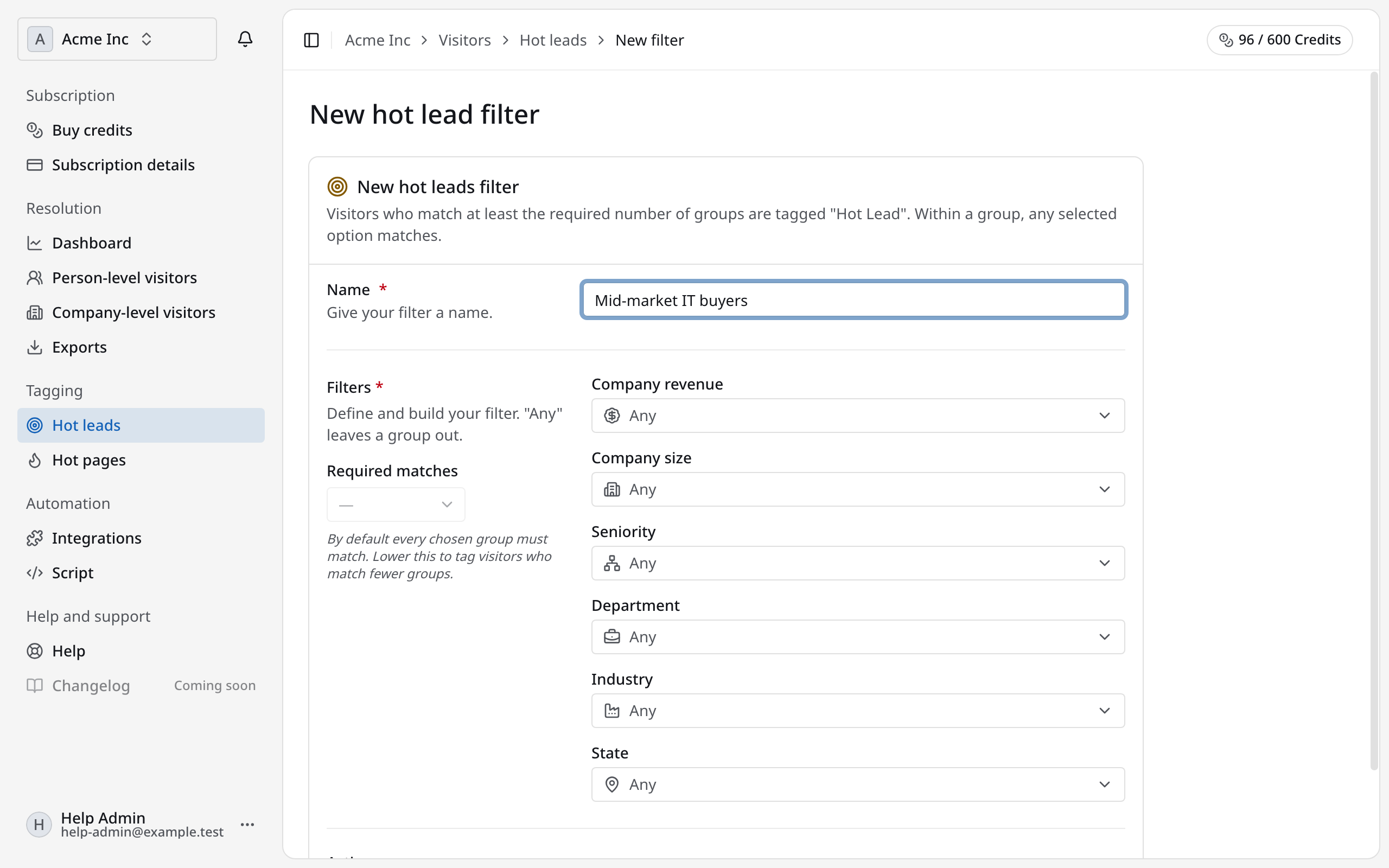
A filter needs a name and at least one option in one group. An account can have up to 50 hot lead filters.
Choosing the required matches
Required matches is shown as "2 of 3": how many of the groups you used must match. It becomes available once you've picked an option in a group.
- By default, every group you used must match. As you add groups, the number follows.
- Lower it to tag people who match fewer of your groups. For example, a filter using Company size, Seniority, Department and Industry set to 2 of 4 tags anyone who matches any two of them.
- If you pick a lower number yourself, it stays where you put it when you add more groups.
When people are tagged
Each filter checks a person once:
- People identified while the filter is active are checked when they're identified.
- People identified before you created the filter, or while it was inactive, are checked the next time they visit your site. They're not tagged retroactively. See Will a newly created Hot Leads tag apply retroactively?
- Editing a filter changes who it tags from then on. People it already checked keep their result: those it tagged stay tagged, and those it didn't tag aren't checked again.
People excluded by your Domain Exclusion List aren't tagged.
Sending only hot leads to an integration
By default, Slack, Microsoft Teams, HubSpot CRM and Salesforce CRM receive every identified person. To send only hot leads:
- Go to Integrations and open the integration's settings.
- Turn on Hot leads only (Slack and Microsoft Teams) or Only sync hot leads under Sync filter (HubSpot CRM and Salesforce CRM).
- Under Hot lead filters, choose the filters this integration follows, or leave Any hot lead filter to send people tagged by any of them.
- Save your changes.
This setting filters people only. Companies identified without a person are still sent while the integration's company-only setting is on.
Slack and Microsoft Teams messages show a Hot lead icon for people tagged as hot leads. See How Blue Tracely's Integrations Work and Quieting the Noise: How to Filter for Relevant Leads in Blue Tracely.
Tips for effective filters
Start from your ideal customer profile
Write down the industries, company sizes and roles your best customers have in common, and use those as your groups. Broad or vague choices tag more people who don't fit.
Start flexible, then tighten
When you're starting out, set Required matches below the number of groups you used. Once you've seen who gets tagged, raise it so only the closest matches qualify.
Prefer quality over volume
If your team is getting too many hot leads that don't fit, raise Required matches or narrow your options. A shorter list of strong leads is easier to act on.
Check your results
Use the Hot leads filter on Person-level visitors to see who each filter tags, and revisit your filters when your market or product changes. See Filtering Hot Leads Visitors.
Troubleshooting
I can't select Required matches
Pick at least one option in a group first. Required matches counts only the groups you've used.
I can't create or edit filters
Only owners and admins can change hot lead filters. Other members see View instead of Edit. If you see an upgrade message instead of your filters, your plan doesn't include hot leads.
A person I expected isn't tagged
Check the person's profile: a group whose value is unknown counts as not matched. Also check whether the person was identified before the filter existed; they're checked on their next visit.