You can narrow Person-level visitors to the people tagged Hot Lead, either by any of your hot lead filters or by a single one. The Hot leads filter is available on the Pro and Pro+ plans.
Showing only hot leads
- Go to Person-level visitors.
- Open the Hot leads menu at the top of the page. It reads All visitors until you choose something.
- Choose one of these:
- Any hot lead: everyone with a Hot Lead tag, including people marked by hand.
- A filter's name: only the people that filter tagged. Paused filters are listed with (inactive) after their name.
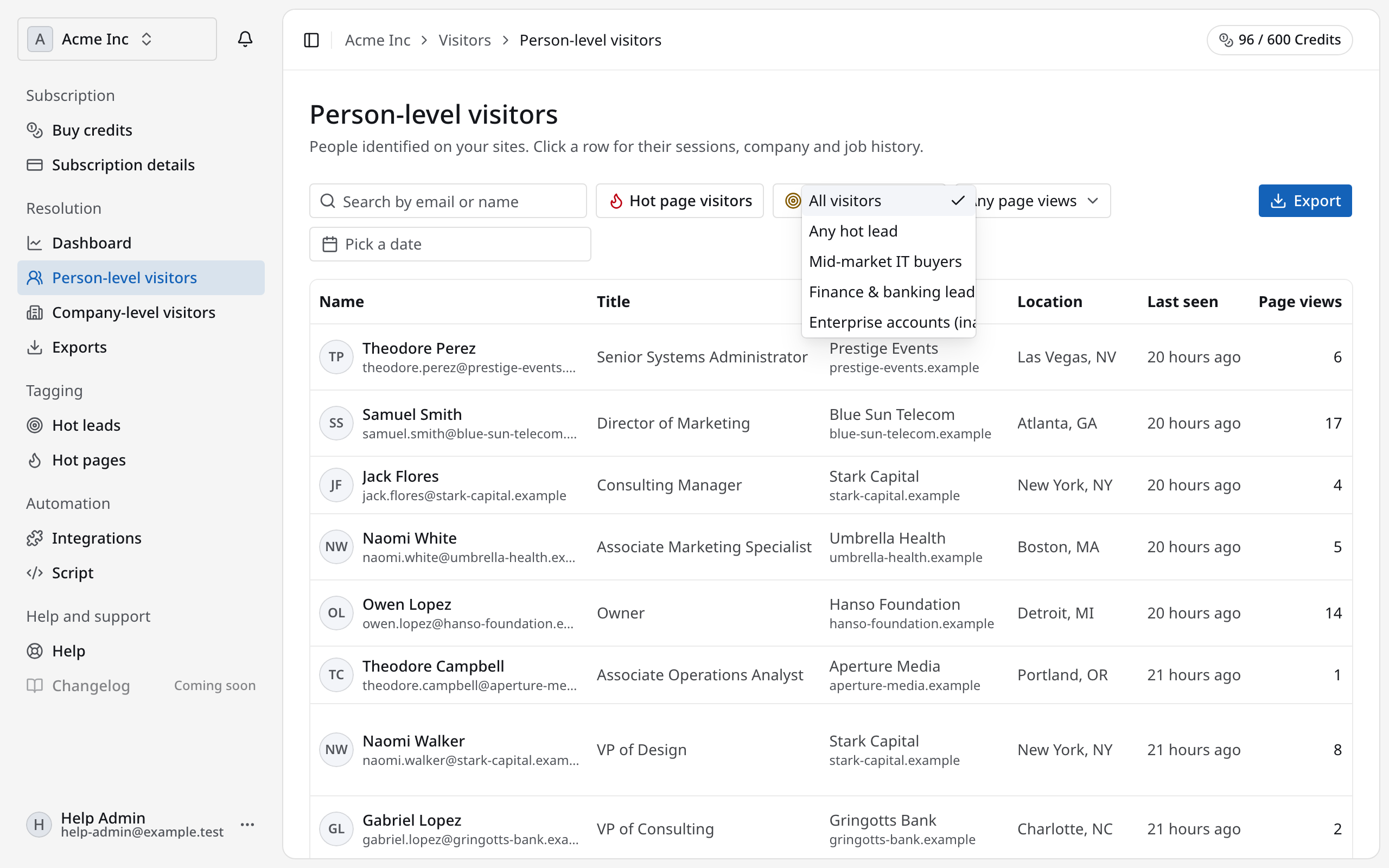
The list reloads with the matching people. You can combine it with the other filters, such as Hot page visitors, a minimum number of page views, a date range or a search.
To go back to the full list, choose All visitors, or select Clear filters to reset every filter.
Hot lead tags apply to people only, so Company-level visitors has no Hot leads filter.
Exporting filtered results
Owners and admins can export the filtered list to a CSV file:
- With your filters applied, select Export.
- In the dialog, choose the Date range, check the Filters applied, and select Export profiles.
- Download the file from the Exports page when it's ready.
See CSV Exports.
Troubleshooting
The Hot leads menu can't be selected
Your plan doesn't include hot leads. The line under the filters reads Some filters are not included in your plan. with a link to upgrade options.
The list is empty
No one matches the filters you chose for the selected dates. Check that your hot lead filters are active on Hot leads, and remember that people identified before a filter existed are only tagged when they visit again.