As your traffic grows, Blue Tracely identifies more visitors, and not all of them are worth a sales conversation. This guide covers three settings that keep your lists and your connected tools focused on the visitors that fit:
- Send only hot leads to your tools
- Restrict visitor collection by URL
- Exclude specific domains
Owners and admins can change these settings. Other members can see them.
Send only hot leads to your tools
When you connect Slack, Microsoft Teams, HubSpot CRM or Salesforce CRM, every identified person is sent by default. You can send only the people who match your ideal customer profile instead.
What a hot lead is
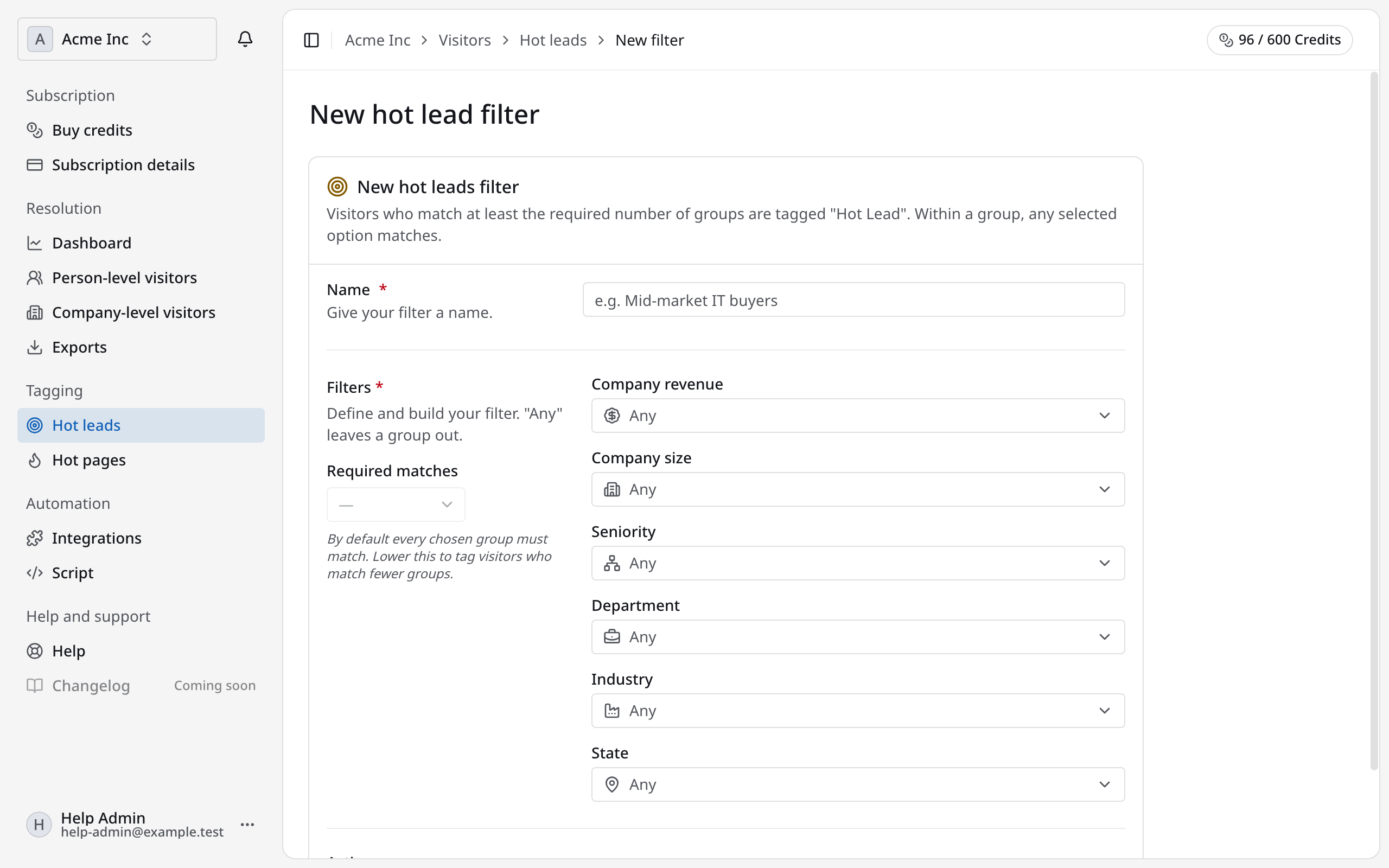
A hot lead is a person who matches one of your hot lead filters. A filter is built from up to six groups: Company revenue, Company size, Seniority, Department, Industry and State. Within a group, any option you select counts as a match. Required matches sets how many of your chosen groups a visitor must match to be tagged "Hot Lead".
By default, every group you choose must match. If you lower Required matches, more visitors qualify, and some of them will fit your profile less well. For example, a filter with four groups set to 1 of 4 tags anyone who matches a single group. Set to 4 of 4, it tags only visitors who match all four.
Hot lead filters are available on the Pro and Pro+ plans.
Send only hot leads to an integration
- Go to Integrations and open the integration.
- Turn on the hot leads setting. It's Hot leads only for Slack and Microsoft Teams, and Only sync hot leads (under Sync filter) for HubSpot CRM and Salesforce CRM.
- Under Hot lead filters, pick the filters this integration should follow. Leave it empty to send people tagged by any hot lead filter.
- Save your changes.
The hot leads setting only filters people. Companies identified without a person are sent whenever the integration's company setting is on: Also sync company-level profiles in Slack, Send Company-Only Profiles in Microsoft Teams, and Sync company-only profiles in HubSpot CRM and Salesforce CRM. Turn that setting off if you only want hot leads.
In HubSpot CRM and Salesforce CRM, re-syncing a profile by hand sends it even if it isn't a hot lead.
Why it matters: your team only gets alerts and records for the people you've decided are worth their time.
See Setup Guide for Hot Leads Tagging.
Restrict visitor collection by URL
Some pages rarely bring buyers, such as careers, support or login pages. URL restrictions decide which pages of a site the script collects on.
How it works:
- On the Script page, go to Visitor capture settings and find URL restrictions.
- Choose Trigger on all pages, except the URLs listed below. to leave a few pages out, or Only trigger on the URLs listed below. to collect only on the pages you list.
- Enter paths that start with
/, such as/pricing, then select Save capture settings.
URL restrictions are set for each domain and are available on every plan.
Why it matters: pages you leave out don't produce visitors to sort through.
See URL Restrictions.
Exclude specific domains
The Domain Exclusion List keeps people you don't want to identify out of Blue Tracely, such as existing clients, partners or your own team.
How it works:
- On the Script page, select Manage list next to Domain Exclusion List.
- Add the email domains to exclude, such as
yourcompany.com. - A person whose email address is on a listed domain isn't shown in your lists, isn't tagged, isn't sent to your integrations and doesn't use a credit.
The list applies across all of your domains and is available on the Pro and Pro+ plans. It works going forward: people identified before you added a domain stay in your account.
Why it matters: your lists show prospects, not people you already work with.
Additional best practices
- Review your hot lead filters when your ideal customer profile changes.
- Use the Hot leads filter on Person-level visitors to check who your filters tag before you send them to your tools.
- Hot lead filters tag visitors as they're identified. A visitor identified before you created or changed a filter is tagged when they come back and match.
Used together, these settings let you:
- collect on the pages that show buying intent;
- leave out the people you already know;
- send only your best-fit visitors to Slack, Microsoft Teams or your CRM.
Step-by-step configuration guide
Step 1: Define your ideal customer profile
Write down what a good-fit lead looks like in terms Blue Tracely can match: company revenue, company size, seniority, department, industry and state.
Step 2: Create a hot lead filter
- Go to Hot leads and select New filter.
- Give the filter a Name.
- Choose options in the groups that matter to you. Leave a group on "Any" to leave it out.
- Set Required matches. Start strict and lower it only if too few visitors qualify.
- Make sure Active is on, then select Save filter.
Step 3: Apply the filter to your integrations
Open each integration and turn on its hot leads setting, as described in Send only hot leads to an integration. Check its company setting too.
Troubleshooting common issues
Visitors who don't fit still appear in Slack. Check three things:
- Hot leads only is on in your Slack integration's settings.
- Required matches isn't set too low. If a filter has five groups and needs only one match, many visitors qualify. Raise it to 2, 3, 4 or all 5.
- Also sync company-level profiles is off, if you don't want companies identified without a person.
Frequently asked questions
Do company-only profiles follow my hot lead filters?
No. Hot lead filters tag people, and the hot leads setting in an integration filters people only. To keep companies identified without a person out of an integration, turn off its company setting.